

Demandium version 4.0 is here.
This release gives platform owners a second way to run their marketplace. Providers can now build and list their own services, while the admin approves each listing before it goes live.
For customers, we’ve redesigned the app, rebuilt the website in React, and let them order from multiple providers in a single order.
Here is a quick look at what changed:
- The Open Market business model lets providers list and manage their own services.
- A business model switch in the admin panel moves the platform between Open Market and Curated.
- Admin-defined categories and subcategories set the structure providers use to create their services.
- Admin approval for provider-created services can be turned on or off.
- Multiple carts let a customer buy from several providers in a single checkout.
- AI service creation writes service details and sets discounts per variation.
- AI usage limits how much AI each provider uses.
- Open Market campaigns let eligible providers join promotions the admin runs.
- A new React user website ships with full Open Market support.
- Flutter Web stops receiving new features, and the React user website replaces it.
- The redesigned user app reworks layouts, spacing, and navigation.
Open Market Business Model in Demandium
Demandium V4.0 introduces the Open Market business model. Until now, the platform has used the Curated Service Model, where the admin controls the entire service catalog. Open Market lets providers create and list their own services.
Both models are available in the same system, and the platform owner chooses which one to run.
Curated Service Model (existing)
The admin controls the catalog, creating the categories, subcategories, and every service under them. Providers subscribe to the subcategories they want to serve and take bookings for the admin’s services. Platform owners already using this model can continue without changes.
Open Market Service Model (New in V4.0)
The admin creates the categories and subcategories. Providers build their own services within that structure. They set their own prices and variations, then submit each service for approval. A single subcategory can include services from multiple providers, with each provider listing their own version. Customers can compare them before booking.
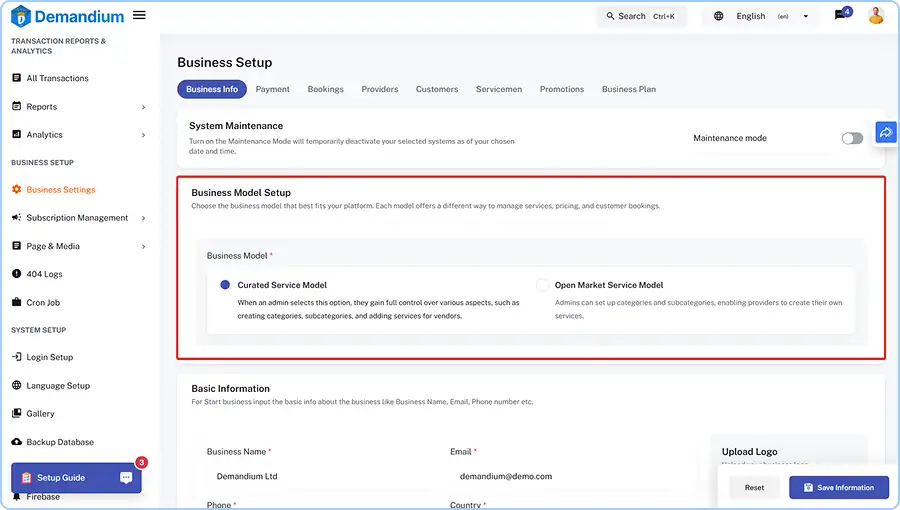
Path: Demandium Admin Panel > Business Settings >Business Setup > Business Info > Business Model Setup
The platform owner switches between the two models from the admin panel. The selected model determines how the catalog, provider panel, and customer-facing pages work across the platform.
Because the switch changes the platform structure, it is not a setting to toggle back and forth. Demandium rebuilds the platform around the selected model, and the catalog and booking records from the previous model are cleared during the process.
What Happens When You Switch the Business Model
Platform owners running Demandium before V4.0 are on the Curated Service Model, so moving to Open Market requires a model switch. Demandium shows a full confirmation screen before the switch. It names the model you are switching to and lists every record that will be cleared.
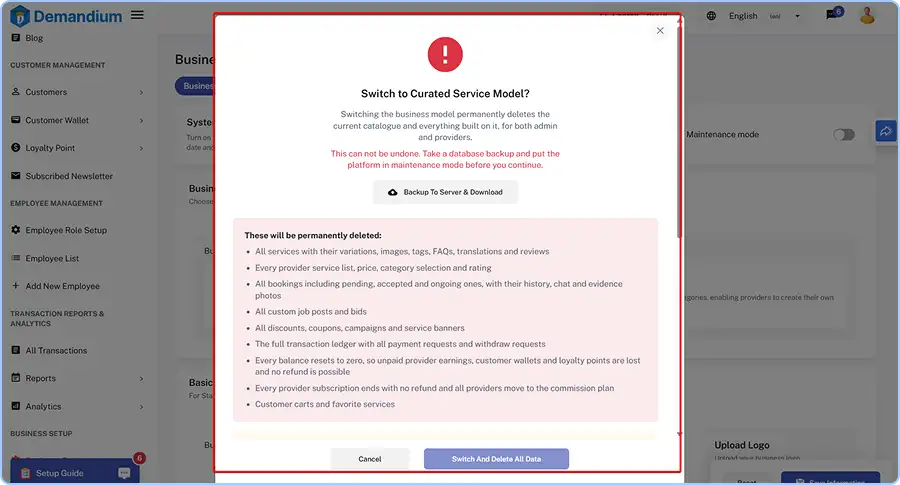
Path: Demandium Admin Panel > Business Settings >Business Setup > Business Info > Business Model Setup > Switch Business Model
The switch permanently deletes the following data for the admin and every provider on the platform:
- All services, including variations, images, tags, FAQs, translations, and reviews
- Every provider service listing, including prices, category selections, and ratings
- All bookings, including pending, accepted, and ongoing bookings, along with their history, chats, and evidence photos
- All custom job posts and bids
- All discounts, coupons, campaigns, and service banners
- The full transaction ledger, including every payment request and withdrawal request
- Every balance, which resets to zero. Unpaid provider earnings, customer wallet balances, and loyalty points are lost with no refund.
- Every provider subscription, which ends with no refund and moves all providers to the commission plan
- Customer carts and favorite services
A Backup To Server & Download button sits at the top of the page, so you can create and download a backup without leaving it.
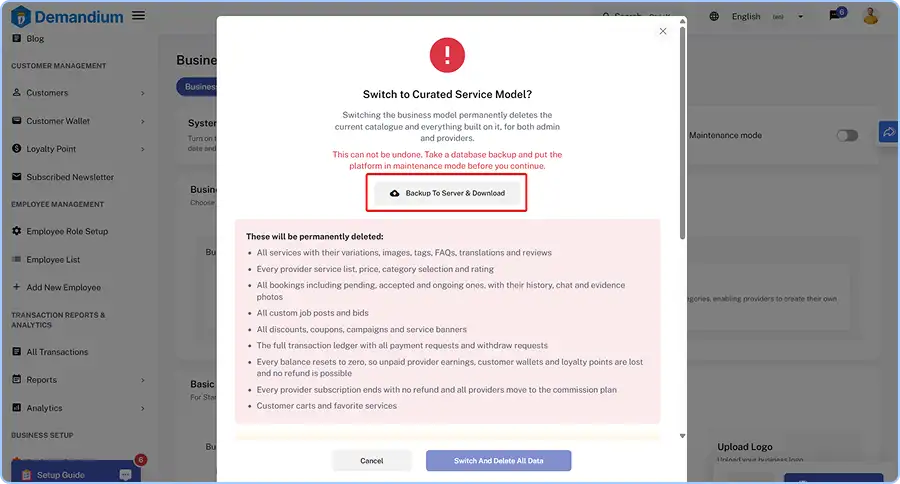
Path: Demandium Admin Panel > Business Settings >Business Setup > Business Info > Business Model Setup > Switch Business Model
Further down, the page explains what to complete before switching, how the platform works after the new model goes live, and what data remains after the move.
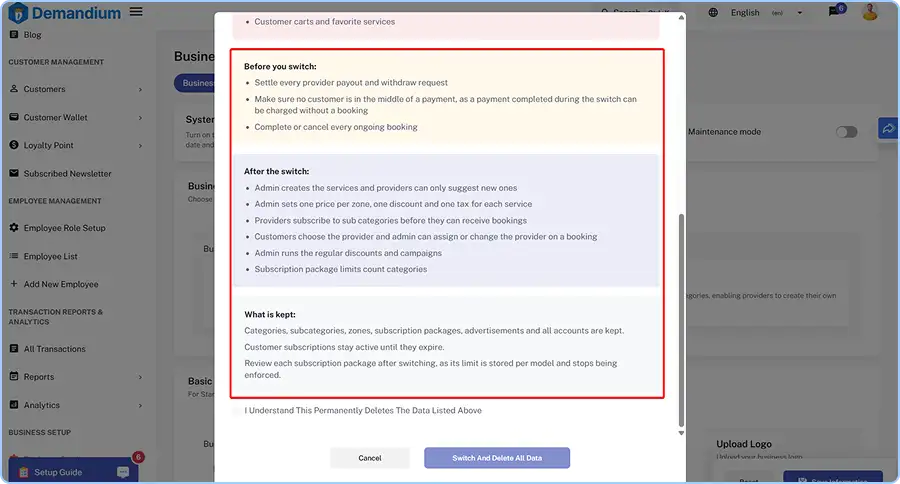
Path: Demandium Admin Panel > Business Settings >Business Setup > Business Info > Business Model Setup > Switch Business Model
Do these before you switch. Each step protects money or bookings that would otherwise be lost.
- Settle every provider payout and withdrawal request
- Complete or cancel every ongoing booking
- Make sure no customer is mid-payment. A payment that completes during the switch is charged without a booking attached.
What is kept
Categories, subcategories, zones, subscription packages, advertisements, and all accounts remain in place. Customer subscriptions stay active until they expire.
Review each subscription package after the switch. Package limits are stored against a single business model. After switching models, those limits no longer apply, so providers have no limit until you set them again.
The After the switch section explains how the new model works, including services, pricing, discounts, and provider access. Read it before confirming the switch. The Switch And Delete All Data button remains disabled until you tick the confirmation box.
Important notice: Switching the business model cannot be undone. Take a database backup and put the platform in maintenance mode before you continue.
Each business model has its own demo. Pick Curated Service or Open Market Service at the top of the demo page. The demo links below then open the admin panel, provider panel, app, and website for the selected model.
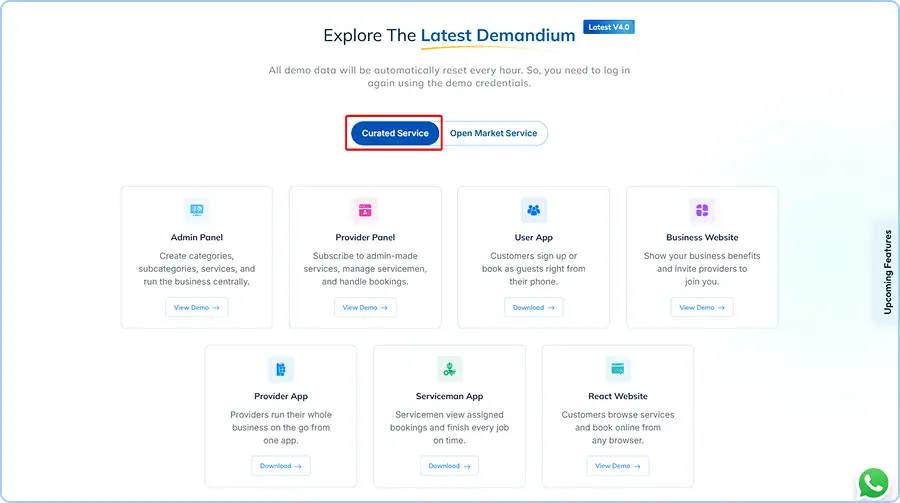
Path: Demandium Demo Page > Curated Service
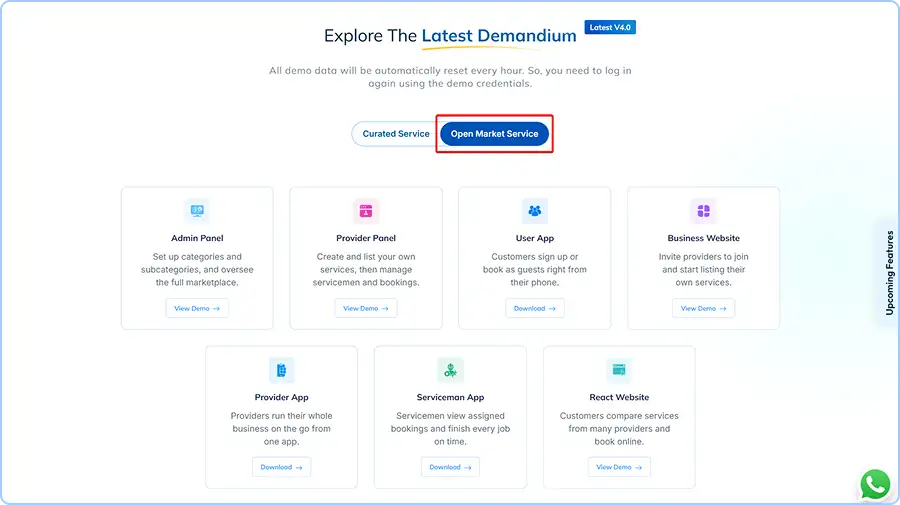
Path: Demandium Demo Page > Open Market Service
Demo data resets every hour. If your session expires, log in again with the demo credentials.
Provider-Created Services in the Open Market Model
In the Open Market, providers get their own service builder in the provider panel. They add a service, select the admin-defined category and subcategory, and set their own price.
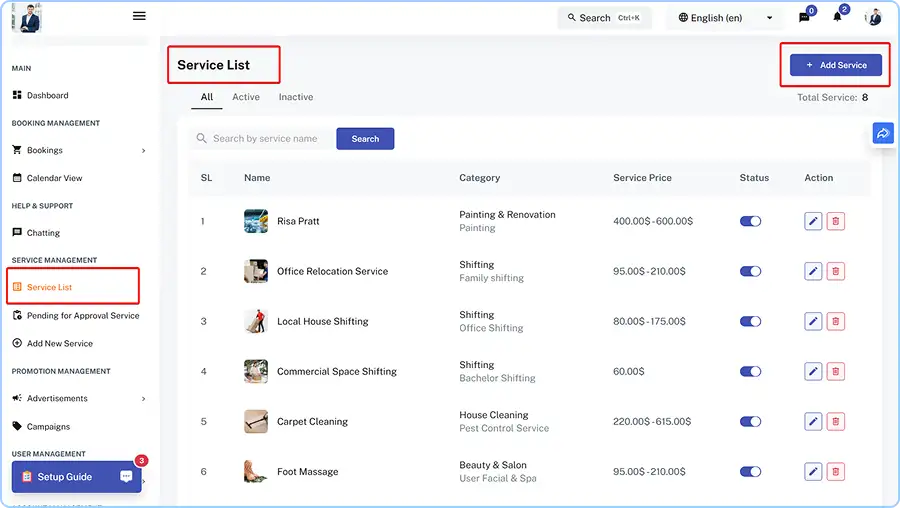
Path: Demandium Provider Panel > Service Management > Service List
The Add New Service form runs in two steps.
- Service information: Name, short description, long description, thumbnail, cover image, category, subcategory, and tags.
- Price variation: Base price, discount, tax, and as many variations as the service needs, each with its own name and price.
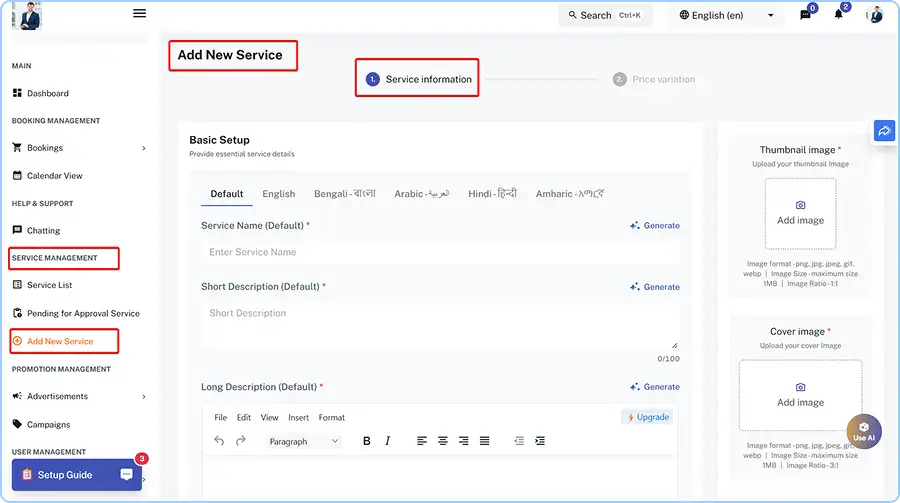
Path: Demandium Provider Panel > Service Management > Add New Service
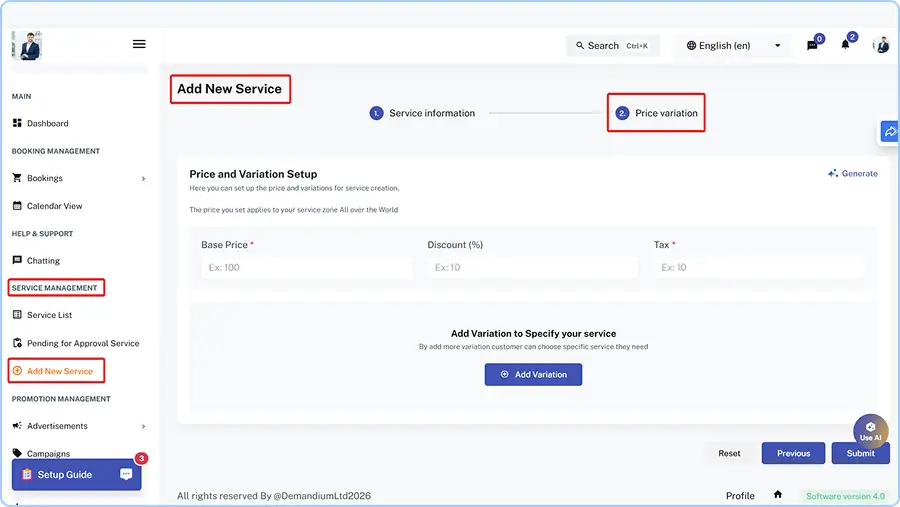
Path: Demandium Provider Panel > Service Management > Add New Service
Once a service is live, the provider manages it from the same panel. They can edit the service, turn it on or off, add FAQs, and reply to customer reviews.
Admin Approval for Provider-Created Services
Open Market gives providers control over service creation, while V4.0 gives the admin a checkpoint before those services reach customers.
A toggle in the admin panel controls whether this approval step is required. Turn it off, and provider-created services publish immediately.
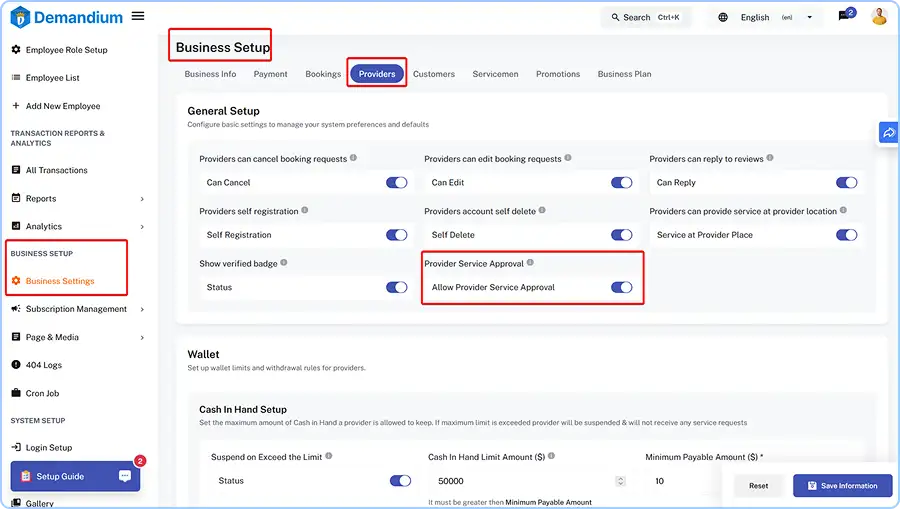
Path: Demandium Admin Panel > Business Settings > Business Setup > Providers > Provider Service Approval
Every provider-created service appears in the Service Request queue in the admin panel, where the admin can approve, reject, edit, or delete it.
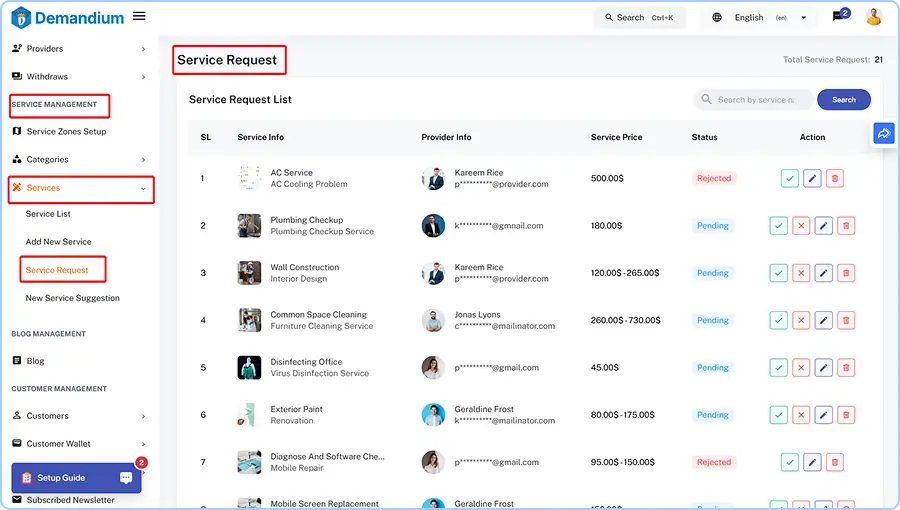
Path: Demandium Admin Panel > Service Management > Services > Service Request
On the provider side, submitted services appear under Pending for Approval with their current status. If the admin rejects a service, the provider sees the reason and can fix the issue before submitting it again.
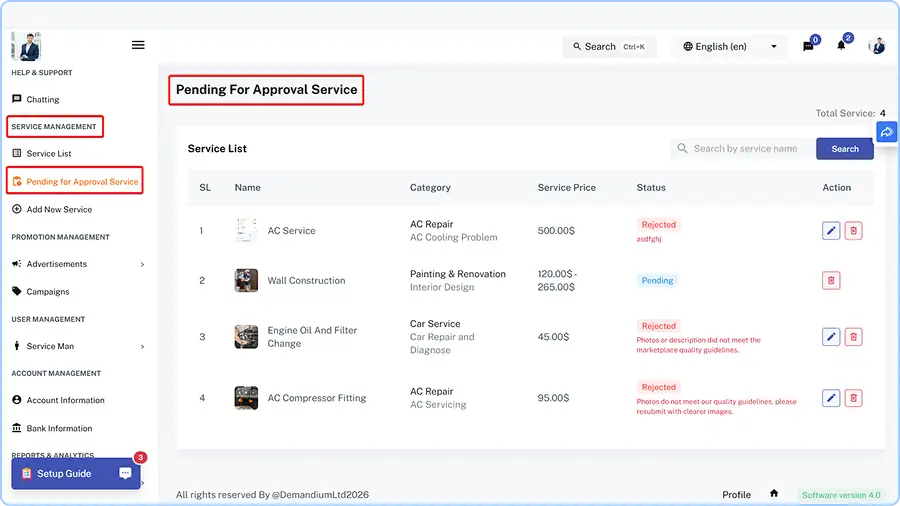
Path: Demandium Provider Panel > Service Management > Pending for Approval Service
The queue and approval toggle are available only in the Open Market Service Model. In Curated, the admin creates every service, so there is nothing to approve.
AI-Powered Service Creation
Creating a service requires a name, short description, and long description for every listing, which adds work for providers in the Open Market Service model. V4.0 adds AI to the service form. The Generate and Use AI buttons create the service name, short description, and long description.
AI can also set the discount for each variation, so providers can give each variation its own discount instead of applying one rate to the entire service.
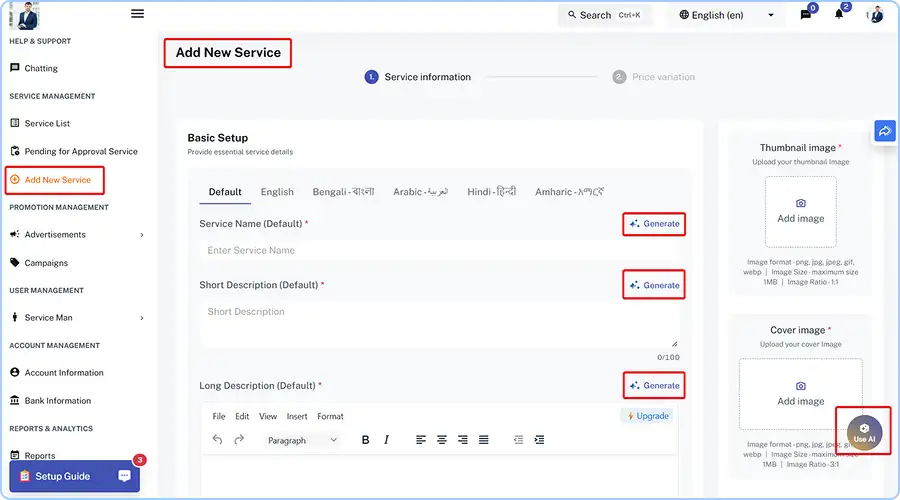
Path: Demandium Provider Panel > Service Management > Add New Service > Use AI
Admins control the AI from the admin panel. The AI Setup page holds the OpenAI key, the on and off switch, and a Provider Usage Limit tab that caps how much AI each provider uses.
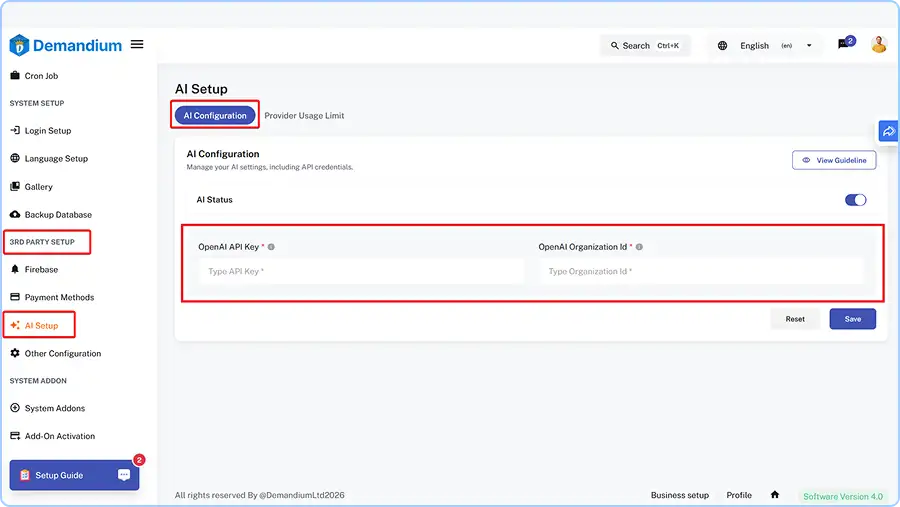
Path: Demandium Admin Panel > 3rd Party Setup > AI Setup
Every AI-generated listing uses the admin’s OpenAI key. The same page has a Provider Usage Limit tab where the admin sets how much AI each provider can use.
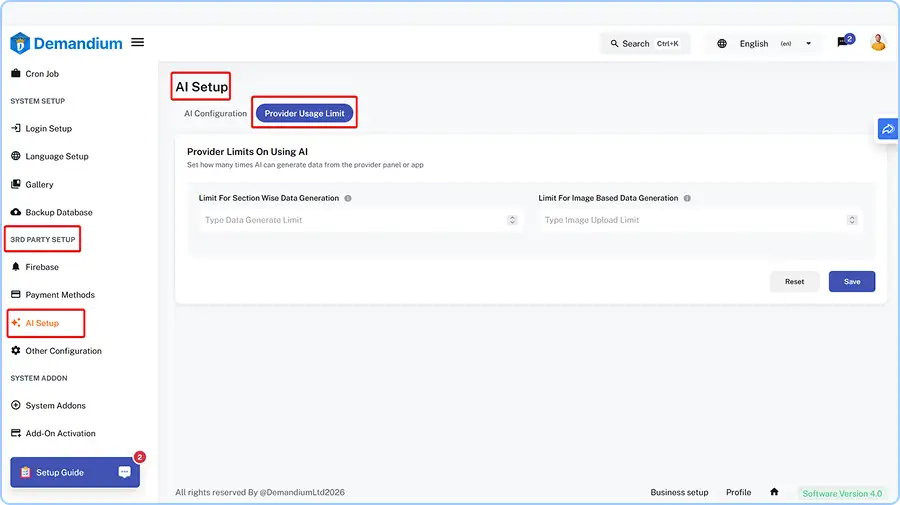
Path: Demandium Admin Panel > 3rd Party Setup > AI Setup > Provider Usage Limit
Providers keep the Generate and Use AI buttons on their service form, but AI generation stops when they reach the limit.
Open Market Campaigns
Campaigns work differently in the Open Market Service Model because providers own their services. The admin creates the campaign and sets its terms. Eligible providers then choose whether to add their services to it.
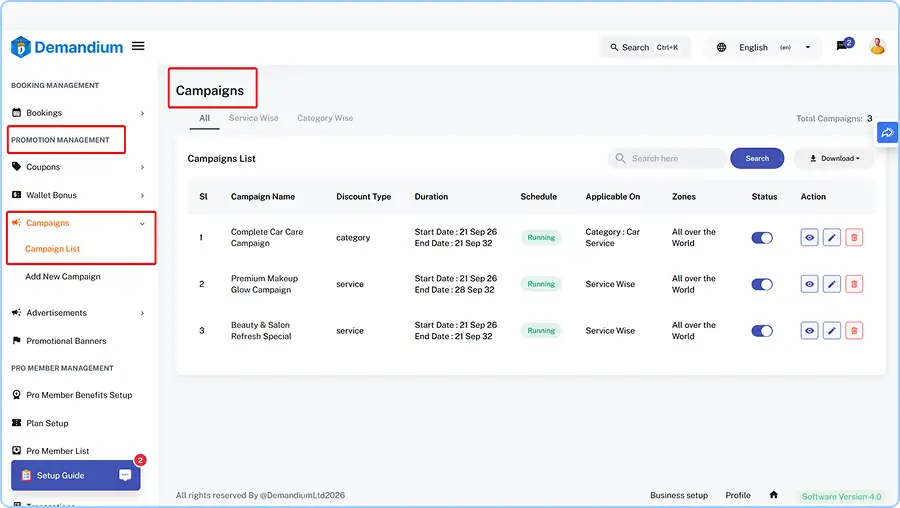
Path: Demandium Admin Panel > Promotion Management > Campaigns > Campaign List
The admin can set up a campaign by category or service. The Add New Campaign form includes the campaign name, discount type, category or service, zone, cover image, and thumbnail.
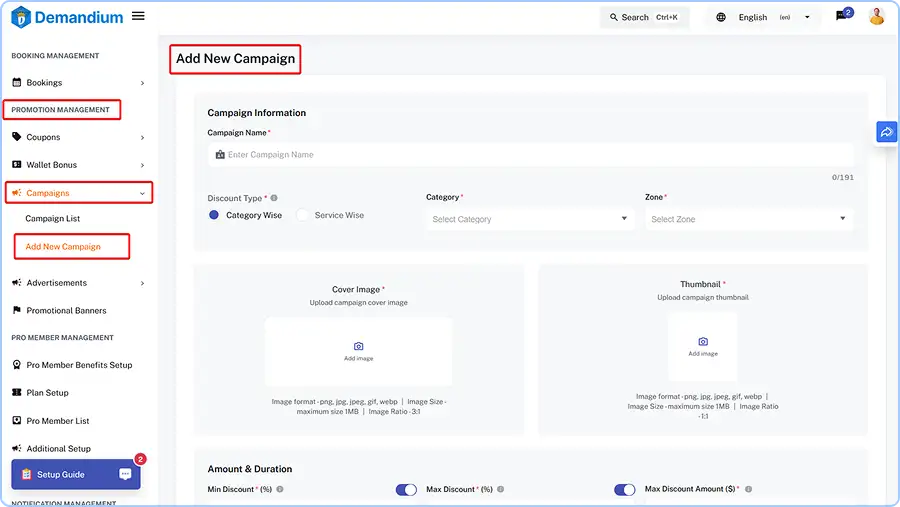
Path: Demandium Admin Panel > Promotion Management > Campaigns > Add New Campaign
Providers join or leave campaigns from their own panel. The campaign list shows the name, what the campaign applies to, its duration, schedule, service count, and zone.
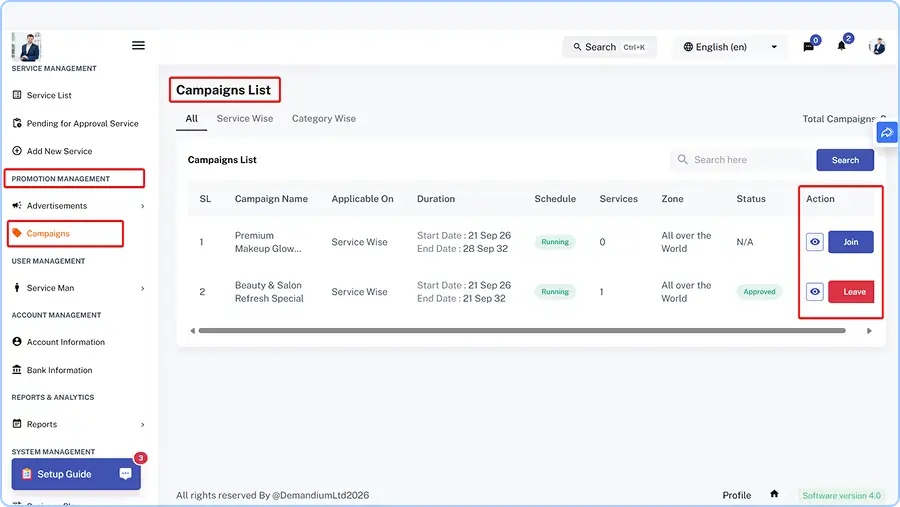
Path: Demandium Provider Panel > Promotion Management > Campaigns
Providers join a campaign using the Join button on its row. Once they join, the button changes to Leave.
Multiple Carts for Multi-Provider Bookings
In the Open Market model, every service belongs to a provider, so a customer browsing a category can see services from multiple providers. V4.0 keeps each provider’s items separate by giving the customer a separate cart for each provider instead of combining them into one.
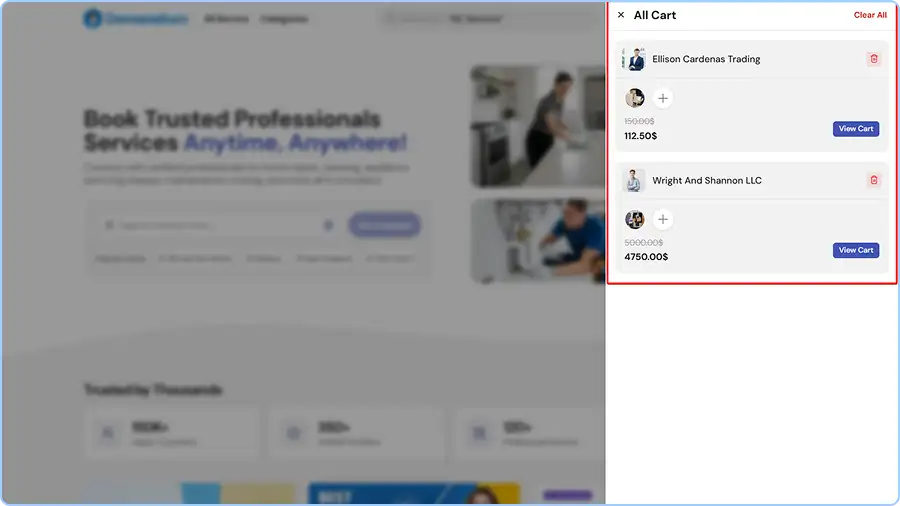
Path: Demandium React User Website > Cart Icon > All Cart
The All Cart panel lists every cart the customer has. Each row shows the provider’s name, the services added, the cart total, and a View Cart button. Customers can remove carts individually or clear them all with Clear All.
Opening a cart shows only that provider’s services. The subtotal and Checkout button apply to that cart alone, so each provider’s services are booked separately.
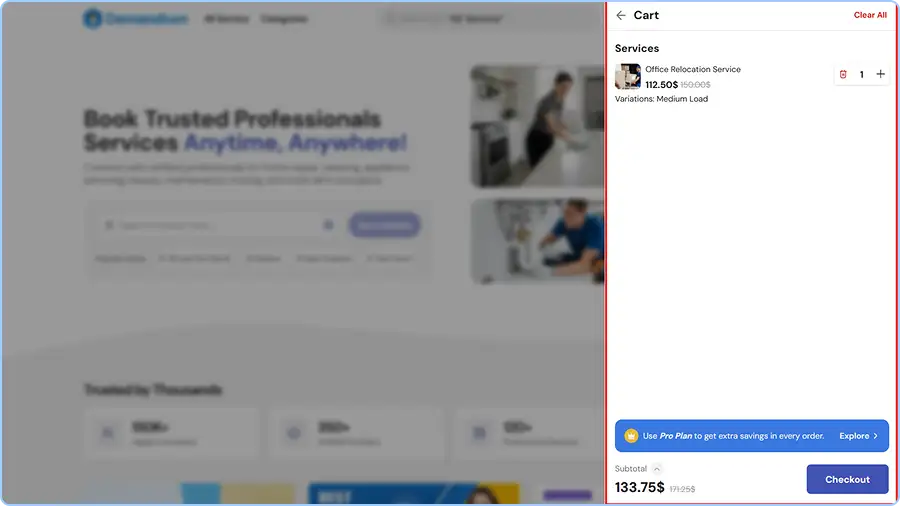
Path: Demandium React User Website > All Cart > View Cart
Customers can keep multiple carts while they shop, so adding a service from another provider does not remove the services already in their cart.
The Curated model uses a single cart because the services belong to the admin. At checkout, the customer chooses who will provide the service under Service Will Be Provided By. They can select a specific provider or let the platform assign one.
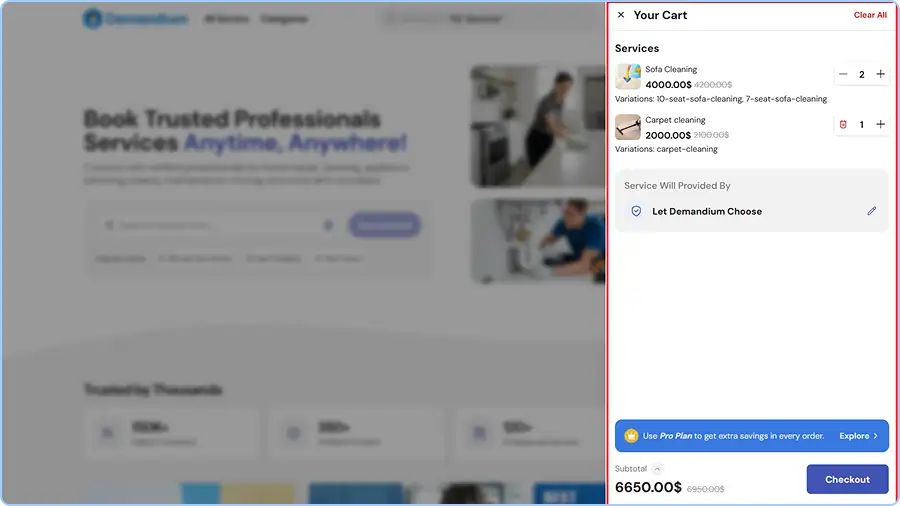
Path: Demandium React User Website > Cart
One booking covers one subcategory in both models. If a customer adds a service from a different subcategory, Demandium shows a Clear Your Cart prompt with two options: Cancel or Clear Cart & Add.
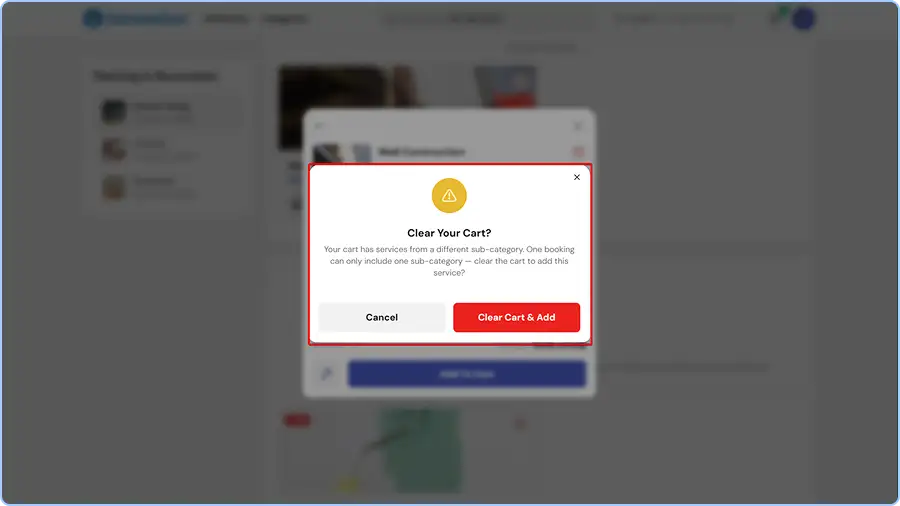
Path: Demandium React User Website > Add a Service from Another Subcategory
This keeps each booking tied to one type of work, which keeps scheduling and provider assignment consistent.
New React User Website With Open Market Support
Demandium V4.0 adds a React user website that replaces the Flutter web app as the platform’s browser-based experience. Customers can browse services from multiple providers, compare them within the same subcategory, and book online from any browser. The website supports the full Open Market feature set, including separate carts for each provider.
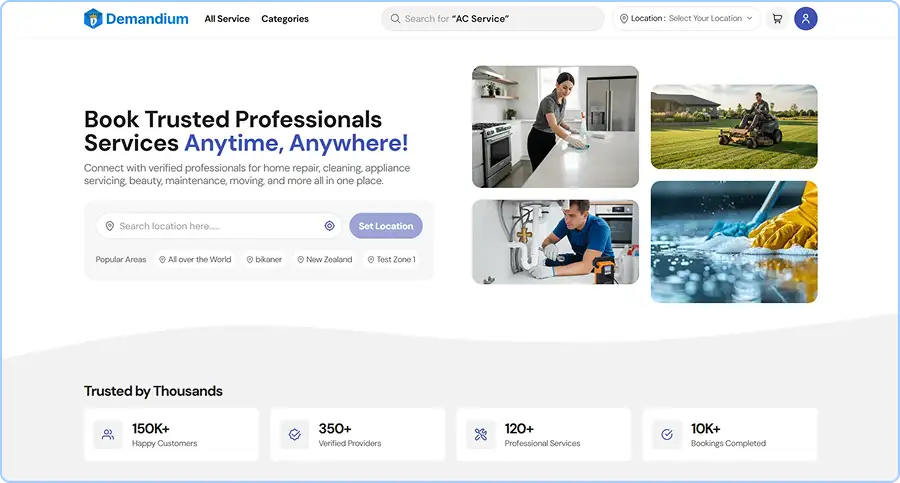
Path: Demandium React User Website
The React website is an add-on. After purchasing it, the admin activates it from the Add-on Activation page, alongside the Provider App and Serviceman App.
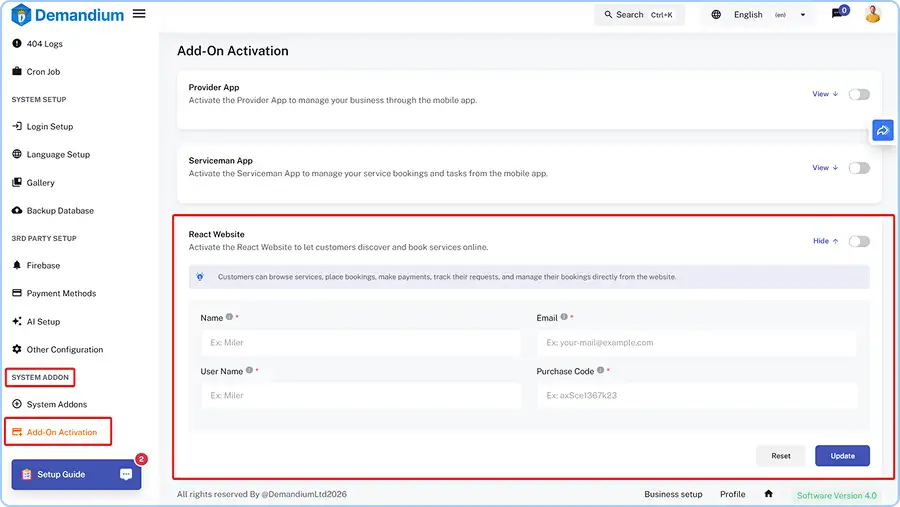
Path: Demandium Admin Panel > System Add-ons > Add-on Activation > React Website
Important Notice: Flutter Web will no longer receive new features from V4.0 onward. It does not support the Open Market model, multiple carts, or features released after V4.0. To run a customer-facing website with these features, move to the React User Website.
Redesigned User App With a Modern UI
The Demandium user app gets a redesigned UI in V4.0. The update reworks layouts, spacing, and navigation across the app, making it easier to browse services and reach checkout on a phone.
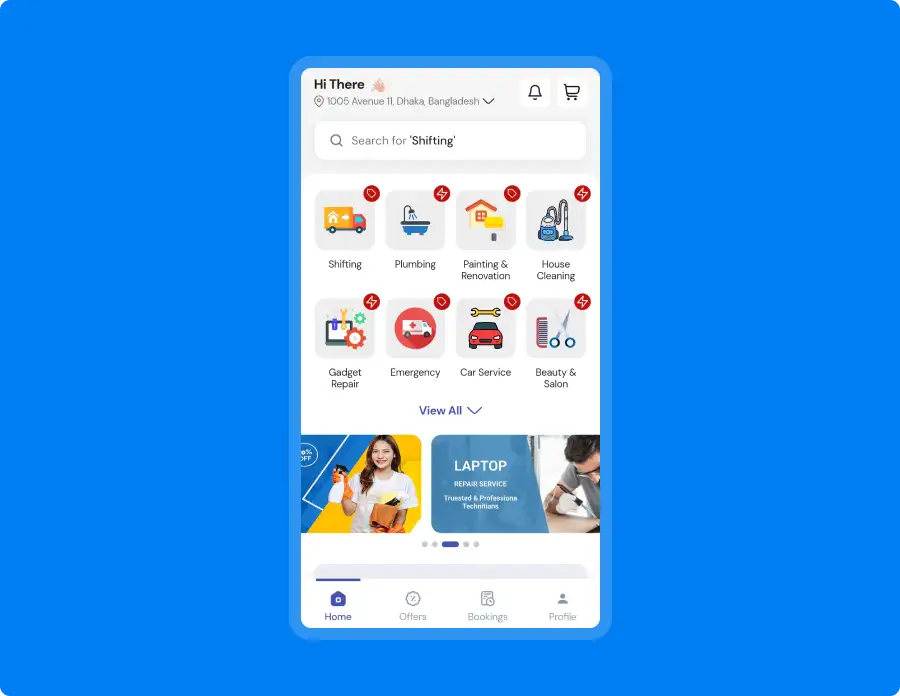
Path: Demandium User App > Home
Improved Notification Reliability
Notifications were rebuilt for reliability across every application in this release. V4.0 fixes reported issues and improves notification handling. Booking updates, wallet activity, and account alerts now reach users reliably.
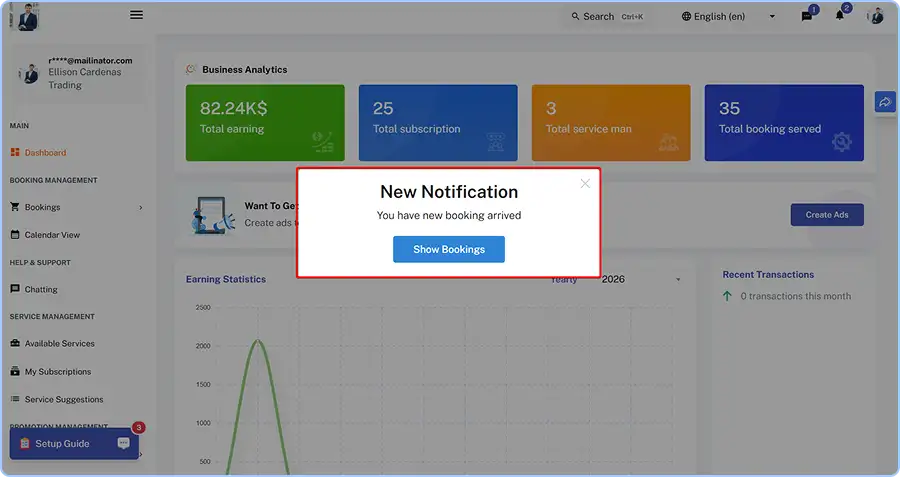
Path: Demandium Admin/Provider Dashboard
The admin sets notification channels for each user type. Notification Channels has Customer, Provider, and Serviceman tabs, where the admin selects whether each notification topic uses Push, Mail, or SMS.
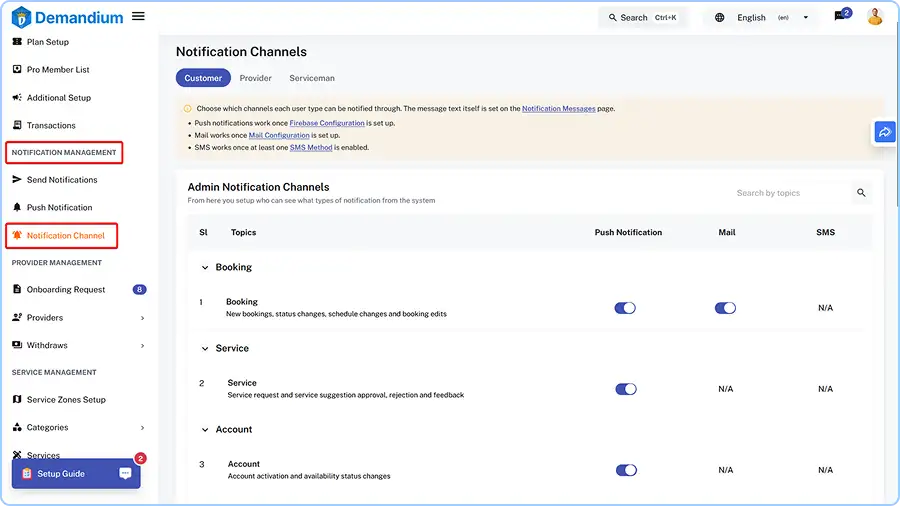
Path: Demandium Admin Panel > Notification Management > Notification Channel
Providers choose their notification channels from the options the admin has enabled. The provider panel has Provider and Serviceman tabs, where providers set channels for their own alerts and their servicemen’s.
Other improvements
A few updates in this release improve the platform behind the scenes.
- Fixed major bugs across the admin panel, provider panel, and applications
- Improved system stability, performance, and overall user experience
- Updated all Flutter applications to Flutter SDK 3.47.5
That covers the major changes in Demandium V4.0. Update now to open your marketplace to provider-created services, AI-generated listings, and multi-provider bookings. Follow along for future release news and updates.
Frequently Asked Questions
What is the Open Market business model in Demandium?
The Open Market business model lets providers create and list their own services. The admin creates the categories and subcategories. Providers build their services inside that structure, with their own prices and variations. A single subcategory can include services from multiple providers.
What is the difference between the Curated and Open Market models in Demandium?
In the Curated Service Model, the admin creates every service, and providers subscribe to the subcategories they serve. In the Open Market Service Model, introduced in V4.0, the admin creates the categories and subcategories, while providers create their own services within them.
Can you switch between Open Market and Curated in Demandium?
Yes. The business model is managed from Business Setup in the admin panel, where the platform owner can switch between Open Market and Curated from a single page.
What happens if you switch the business model in Demandium?
Switching permanently deletes the current catalog and data built under that model. This includes services, bookings, discounts, the transaction ledger, balances, and provider subscriptions, with no refunds on subscriptions. Categories, subcategories, zones, packages, advertisements, and accounts remain in place. Take a database backup and put the platform in maintenance mode before confirming the switch.
Do provider-created services need admin approval?
The admin decides whether approval is required. Provider-created services appear in the Service Request queue, where the admin can approve, reject, or edit them. Rejected services show the admin’s reason so providers can fix and resubmit them. The admin can turn off the approval step from the admin panel.
How does AI service creation work in Demandium V4.0?
The provider service form has Generate and Use AI buttons that create the service name, short description, and long description. AI can also set the discount for each variation, so each variation can have its own discount. The feature uses the OpenAI key configured by the admin in AI Setup.
Can admins limit how much AI providers use?
Yes. The Provider Usage Limit tab in AI Setup lets the admin set an AI usage limit for each provider. The AI feature uses the admin’s configured OpenAI key, and the limit controls how much each provider can use.
What are multiple carts in Demandium?
Multiple carts let customers hold services from multiple providers at the same time. Each provider has a separate cart and checkout, so customers can order from another provider without clearing their existing cart.
Can one booking include services from different subcategories?
No. Each booking covers one subcategory. If a customer adds a service from another subcategory, Demandium shows a Clear Your Cart prompt. The customer can cancel or clear the cart and add the new service. This rule applies to both business models.
Does Demandium V4.0 still support Flutter Web?
Flutter Web no longer receives new features from V4.0 onward, so it does not support the Open Market model or features released after V4.0. The React User Website replaces it as the supported web solution.